
All about Klipper: The ultimate guide to optimize your 3D printer


This site is supported by its readers, and we may receive commissions if you purchase products through our links, at no additional cost to you. More information..
What is Klipper?
Klipper is an open source firmware designed to improve the performance and accuracy of 3D printers. Unlike other traditional firmwares such as Marlin, Klipper takes an innovative approach by delegating much of the processing to an external computer, typically a Raspberry Pi, rather than relying solely on the printer's controller board.
This architecture allows for more precise control of motor movement and the execution of advanced calculations without overloading the printer board. As a result, Klipper can handle higher print speeds without compromising quality and provide advanced features that other firmwares cannot execute efficiently.

History and evolution of Klipper firmware
Klipper was created by Kevin O'Connor in 2016 with the intention of optimizing the performance of 3D printers through a new approach to command processing. Since its release, it has gained popularity within the 3D printing community thanks to its flexibility, compatibility with multiple controller boards and the ability to constantly update with new features.
Over time, Klipper has been adopted by manufacturers and enthusiasts looking to improve the speed and accuracy of their printers without changing the main hardware. Its community has grown significantly, offering improvements and optimized configurations for different printer models.
What is Klipper used for in 3D printing?
Klipper is a firmware designed to optimize the performance of 3D printers, allowing them to reach higher speeds without losing quality. Its main function is to improve the precision of motor control and the efficiency of G-code command processing, resulting in faster and better quality prints.
Improved printer performance
One of the most important benefits of Klipper is its ability to significantly improve 3D printer performance.
- Increased speed without loss of quality
Thanks to its efficient processing system, Klipper allows printing at higher speeds without generating defects such as vibrations, ghosting or loss of precision in the layers. - Reduction of resonance effect
Klipper incorporates advanced algorithms to compensate for printer resonance, which minimizes visual artifacts in printed parts and improves stability in fast movements. - More accurate microstep interpolation
Controls stepper motors more efficiently, achieving smoother movements and reducing printer noise during operation. - Improved extrusion flow management
With advanced extrusion calibration and pressure compensation, Klipper achieves more precise control of filament flow, which improves layer quality and reduces problems such as underextrusion or overextrusion.
Additional functionalities provided by Klipper
In addition to improving printer performance, Klipper offers a number of advanced features that are not available in traditional firmware.
- Macros and advanced automation
Klipper allows the creation of custom macros to automate tasks such as filament change, bed leveling and temperature presets. - Support for multiple controller boards
Several electronic boards can be used at the same time to control different printer functions, such as additional axes, sensors and advanced accessories. - Modern web interfaces
Klipper integrates with graphical interfaces such as Mainsail and FluiddThe new printer is equipped with a new LCD screen, which allows you to monitor and control the printer from any device with internet access, without the need for a traditional LCD screen. - Advanced calibrations
It includes automatic calibration tools to improve printing accuracy, such as dynamic temperature adjustment, extruder step calibration and real-time error detection. - Increased stability and safety
By processing calculations outside the printer's main board, Klipper reduces the possibility of crashes and print failures, improving system stability.
How does Klipper work?
Klipper works by dividing the processing tasks between two main components: the Raspberry Pi (or any other Linux-based system) and the controller board of the 3D printer. Unlike traditional firmware such as Marlin, where the controller board handles all calculations in real time, Klipper leverages the processing power of the Raspberry Pi to execute more complex tasks efficiently and quickly.
This separation of tasks improves print speed, reduces latency and provides greater system stability, resulting in faster and more accurate prints.

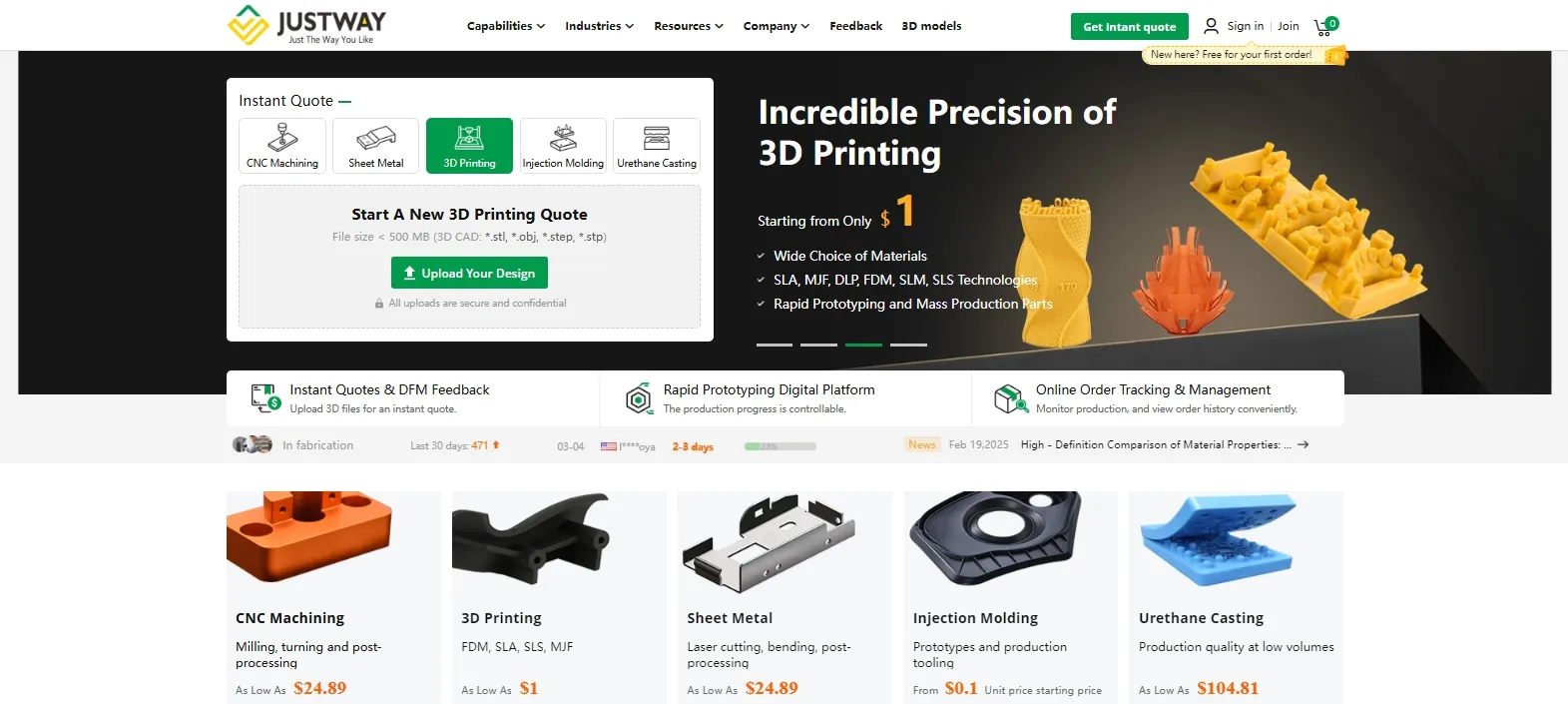
Before we continue, did you know that this publication is sponsored by JUSTWAY.COM ?
Want perfect prints without the hassle? Try Justway.com's online 3D printing service.

Are you tired of dealing with adhesion problems, calibration or complicated technical settings? If you want professional results without wasting time, Justway.com has the ideal solution for you.
At Justway we offer a fast, reliable and high quality 3D printing service onlinedesigned for makers as well as for companies, designers, students and entrepreneurs.
🚀 Benefits of printing on Justway.com
- ✅ Accurate 100% printoutsthanks to expertly calibrated and operated equipment.
- ✅ Wide variety of materialsincluding PLA, PETG, ABS, resins and more.
- ✅ Fast delivery throughout the countrywith follow-up and personalized attention.
- ✅ Instant online quoteswithout the need to register.
- ✅ Functional or visual prototypingWe offer a wide range of products, final parts, educational models, custom designs and much more.
🔧 How does it work?
- You upload your STL or STEP file to the platform.
- You choose material, color, type of finish and quantity.
- You receive the quotation in seconds and confirm the order.
- We take care of the rest. You just receive your piece, ready to use.
🧠 Ideal if...
- You don't have a 3D printer but you need a part.
- Your printer is out of service or does not achieve good results.
- You want to validate a design without spending time and filament.
- You are looking for a reliable service with professional quality.
💬 Try Justway.com's 3D printing service today and forget about technical problems.
Visit justway.com/prototyping-quickly and start printing with confidence.

Klipper architecture: Separation of tasks between Raspberry Pi and controller board
In a traditional 3D printer with Marlin, the controller board receives the G-code commands directly and processes all the necessary calculations for motor movement, temperature control and other functions in real time. However, this approach has limitations due to the reduced processing power of the board.
Klipper solves this problem by dividing the tasks as follows:
- Raspberry Pi (or equivalent system)
- Receives and analyzes the G-code sent by the user.
- Processes complex kinematics and motion control calculations.
- Optimizes the commands before sending them to the controller board.
- 3D printer controller board
- It receives preprocessed commands from the Raspberry Pi.
- It executes only the instructions necessary to drive motors and other components.
- Reduces workload and improves operational efficiency.
This modular design allows the printer to perform advanced calculations without relying on the limited hardware of the controller board, resulting in a faster, more stable and accurate system.
Real-time communication and command processing
Klipper uses an efficient communication system based on UART (serial port) or SPI to send commands between the Raspberry Pi and the controller board.
- G-code reception and analysis
When the user sends a G-code file to Klipper (either through a web interface such as Fluidd or Mainsail, or via OctoPrint), the Raspberry Pi parses the code and converts it into optimized instructions. - Preprocessing and motion planning
Klipper processes all the paths and calculates the optimal times for executing the printer's movements. Thanks to this, you can anticipate commands and avoid delays that could lead to printing defects. - Sending commands to the controller board
Instead of having the board control every detail of the motion, Klipper sends it a series of preprocessed instructions that only need to be executed at the right time. This reduces the workload and minimizes timing errors. - Real-time execution
The controller board executes the received commands more accurately and without the latency that would be generated in a system where all calculations are performed in the same processing unit.
This working model allows Klipper to offer advanced features such as extrusion pressure compensation, vibration reduction and high-speed printing without loss of quality.
Requirements to install Klipper on your 3D printer
Before installing Klipper on your 3D printer, it is important to make sure you have the necessary hardware and software to run it properly. Unlike other firmware such as Marlin, Klipper requires a specific configuration that includes an external processor, usually a Raspberry Pi, and some additional software for installation and management.
Hardware required: Raspberry Pi, SD cards and other components
To run Klipper correctly, you will need the following hardware items:
- Raspberry Pi (or a compatible alternative)
- Klipper is designed to run on a Raspberry Pi (recommended models): Raspberry Pi 3B, 3B+, 4B or higher versions).
- You can also use other Linux mini PCs, but Raspberry Pi offers the best compatibility.
- The Raspberry Pi will be in charge of performing the advanced calculations and sending the optimized commands to the printer.
- microSD card for Raspberry Pi
- A microSD card of at least 8GB to install the operating system and necessary software.
- It is recommended to use good quality cards to avoid data corruption problems.
- USB cable or UART/SPI connection
- The Raspberry Pi must communicate with the printer controller board via a USB cable or a UART/SPI serial connection.
- It is advisable to use good quality USB cables to avoid interference or communication outages.
- Power supply for Raspberry Pi
- It is important to have an adequate power source (at least 5V 3A for Raspberry Pi 4).
- If the Raspberry Pi does not receive sufficient power, disconnections or errors in data transmission may occur.
- 3D printer controller board
- Most Marlin-compatible boards are also compatible with Klipper, including the Creality V4.2.2 and V4.2.7, BIGTREETECH SKR, MKS GEN L, among others..
- In some cases, it may be necessary to update the board firmware or make some configuration modifications.
Software required: Operating systems and installation tools
To install and run Klipper on the Raspberry Pi, you will need the following programs:
- Operating system for Raspberry Pi
- It is recommended to install Raspberry Pi OS (formerly Raspbian) either Debian.
- You can also opt for pre-configured distributions such as Mainsail OS either FluiddPiincluding Klipper and a ready-to-use web interface.
- Klipper Firmware
- It must be downloaded from the official Klipper repository on GitHub and compiled to be compatible with the printer board.
- The installation and configuration of the firmware is done via SSH connection to the Raspberry Pi.
- Web interface for Klipper management
- It is recommended to install a graphical interface to manage Klipper easily and efficiently.
- The most popular options are:
- MainsailLightweight, modern and optimized for Klipper.
- FluiddSimilar to Mainsail, but with a different design.
- OctoPrint with Klipper PluginCan be used, but consumes more resources.
- Python and required dependencies
- Klipper requires Python and some additional packages to work properly.
- During installation, these will be downloaded automatically.
With these requirements covered, you are ready to begin the process of installing Klipper on your 3D printer.
Klipper installation steps
Once you have the necessary hardware and software, it's time to install Klipper on your 3D printer. Here is a step-by-step explanation on how to do it.
Preparing the environment: Raspberry Pi configuration
- Download and install the operating system
- Download Raspberry Pi OS Lite (without graphical environment) or MainsailOS/FluiddPi if you want a ready-to-use web interface.
- Use Raspberry Pi Imager either balenaEtcher to save the image to a microSD card.
- Configuring access to the Raspberry Pi
- Enable SSH by creating an empty file named
sshon the microSD card. - Connect it to the WiFi network by adding a file
wpa_supplicant.confwith the network data (optional if you use Ethernet cable).
- Enable SSH by creating an empty file named
- Connecting and accessing the Raspberry Pi
- Insert the microSD card into the Raspberry Pi and turn it on.
- Connect via SSH from your PC using a program such as PuTTY (Windows) or the Linux/Mac terminal: bashCopyEdit
ssh [email protected](The default password israspberry).
- Upgrade the system and download Klipper
- Execute the following commands: bashCopyEdit
sudo apt update && sudo apt upgrade -y git clone https://github.com/Klipper3d/klipper.git cd klipper ./scripts/install-debian.sh
- Execute the following commands: bashCopyEdit
Installation of the firmware on the printer controller board
- Configuring Klipper for the Printer Board
- Access the Klipper directory and run the configuration script: bashCopyEdit
cd ~/klipper make menuconfig - Select your microcontroller type (e.g. STM32F103 if you use a Creality 4.2.2).
- Save and compile the firmware with
make.
- Access the Klipper directory and run the configuration script: bashCopyEdit
- Upload firmware to the board
- Extracts the generated file (
klipper.bin) and place it on an SD card. - Insert the SD card into the printer and turn it on to update the firmware.
- Extracts the generated file (
Initial configuration and calibration of the printer with Klipper
- Configure the Klipper file (
printer.cfg)- Download a base configuration file for your printer from the Klipper repository.
- Edit it with the correct values of steps per mm, connection pins, and type of sensors.
- Connecting Klipper to the printer
- Use a command such as
ls /dev/serial/by-id/*to find the printer port. - Modify
printer.cfgand restart Klipper.
- Use a command such as
- Perform initial calibrations
- Bed leveling: Configure the autoleveling system if you use a sensor such as BLTouch.
- PID tuning: Set the hotend and bed temperatures with the command: bashCopyEdit
PID_CALIBRATE HEATER=extruder TARGET=200 - Measurement of resonances: If you use Input ShapingThe accelerometer is used to take a measurement.
With these steps, Klipper will be correctly installed and configured on your 3D printer.
Youtube Channel: JC 3DESIGN (JUAN CARLOS)
Comparison between Klipper and Marlin
Marlin and Klipper are two of the most widely used firmwares in 3D printing. Each has its own characteristics, advantages and disadvantages. Below, we look at the key differences between the two.
Key differences in functionality and performance
| Feature | Klipper | Marlin |
|---|---|---|
| Processing | It runs on a Raspberry Pi, enabling faster calculations. | It runs directly on the printer board, with limited resources. |
| Print speed | Optimize movements to print faster without losing quality. | You can limit the speed by the capacity of the plate. |
| Input Shaping | Reduces vibrations and improves print quality. | Not available in standard Marlin versions. |
| Updating and configuration | It is edited and updated in real time without recompiling. | Requires recompiling and flashing each time the configuration is changed. |
| Web interface | Compatible with Mainsail and Fluidd for remote control. | Requires OctoPrint or other external solutions. |
| Plate compatibility | Compatible with many boards, but requires a Raspberry Pi. | It works on almost all boards without additional hardware. |
| Support for advanced functions | Improved support for macros, accelerometers and advanced pressure extrusion. | It supports most of the standard functions, but with limitations. |
Advantages and disadvantages of each firmware
✅ Advantages of Klipper
- Higher printing speed without losing quality.
- Input Shaping reduces vibrations and improves accuracy.
- Allows to modify configurations without recompiling the firmware.
- The printer can be controlled via web interface (Mainsail, Fluidd, Moonraker).
- Support for advanced macros and custom commands.
❌ Disadvantages of Klipper
- Requires a Raspberry Pi, which increases the cost.
- More complex installation and configuration than Marlin.
- Some printer boards may not be compatible without modifications.
✅ Advantages of Marlin
- No additional hardware is required, as it runs directly on the board.
- Easy to install on most 3D printers.
- High compatibility with different boards and sensors.
- Large community with lots of documentation and support.
❌ Disadvantages of Marlin
- Lower processing capacity compared to Klipper.
- Less efficient at high printing speeds.
- Requires recompilation and flashing each time a configuration change is made.
Klipper is ideal for those looking to improve printer performance and optimize print speed.while Marlin remains a reliable and easier-to-install option for users who do not want additional complications..
Modifications required on a Marlin 3D printer to migrate to Klipper
Migrating a 3D printer using Marlin to Klipper requires some changes in both hardware and firmware configuration. Below, we explain what modifications are necessary for a successful transition.
Upgrading hardware and connections
For Klipper to work properly, it is necessary to add a Raspberry Pi or similar microcomputer, as this firmware does not run directly on the printer board like Marlin.
✅ List of required hardware
- Raspberry Pi (preferably a 3B, 3B+ or 4 model).
- microSD card (minimum 8GB) to install the Klipper operating system.
- USB cable (compatible with the printer) to connect the Raspberry Pi to the printer board.
- Power supply for Raspberry Pi (5V and minimum 2.5A).
- Accelerometer sensor (optional, but recommended to activate Input Shaping and reduce vibrations).
Connection between the Raspberry Pi and the printer
- Turn off the printer and the Raspberry Pi before making any connection.
- Connect the printer board to Raspberry Pi via USB cable.
- Make sure that the Raspberry Pi has an internet connection. to facilitate the installation of Klipper.
- If you use an accelerometerIf you want to connect it to the Raspberry Pi following the Klipper documentation.
Once this is done, the printer is ready to receive the new firmware.
Adjustments to firmware configuration and settings
The Klipper configuration is different from Marlin in that instead of recompiling and uploading the firmware to the board each time a change is made, a configuration file is edited on the Raspberry Pi.
📌 Steps to adapt the configuration
- Generating a basic firmware for the printer board
- A small Klipper firmware must be compiled and loaded on the printer board.
- This firmware is only responsible for receiving and executing commands from the Raspberry Pi.
- Create a custom configuration file
- In Klipper, all the configuration is handled through a file
.cfgwhich is easily edited from the web interface (Mainsail or Fluidd). - This file should contain information about the motors, sensors, temperature limits and other printer-specific parameters.
- In Klipper, all the configuration is handled through a file
- Setting the values of steps per mm and accelerations
- It is important to verify that the values of steps per mm, maximum speeds and accelerations are correct in the Klipper configuration.
- They can be optimized to improve print quality and speed.
- Set level sensor (if applicable)
- If the printer uses a sensor such as the BLTouch, the corresponding configuration must be added to the file
.cfg. - In Klipper, the self-leveling system works more efficiently thanks to its processing on the Raspberry Pi.
- If the printer uses a sensor such as the BLTouch, the corresponding configuration must be added to the file
- Enable Input Shaping (optional, but recommended)
- Input Shaping reduces vibrations in printing at high speeds.
- An accelerometer sensor is required, although it can also be configured manually with resonance testing.
Once these adaptations have been made, the printer will be ready to work with Klipper, offering improvements in speed, accuracy and ease of configuration.
Klipper's impact on print speed and quality
One of the major benefits of Klipper is the optimization of the 3D printer's performance. Thanks to its advanced architecture, this firmware makes it possible to significantly increase printing speed without sacrificing quality. Below, we will see how it achieves these increases and some real-world examples of the improvements obtained.
Increased printing speed without compromising quality
Klipper allows printing at much higher speeds than Marlin due to its ability to process commands more efficiently.
🔹 Faster processing of G-code commands
- Marlin relies on the printer's controller board to process the motions, which creates limitations in execution speed.
- Klipper, on the other hand, delegates processing to the Raspberry Pi, which is much more powerful, allowing faster and more accurate calculations.
🔹 Input Shaping: Vibration and oscillation reduction
- At high speeds, the printer can generate ringing (wave effect on the parts) due to the inertia of sudden movements.
- Klipper solves this with Input ShapingThe new, vibration-compensating algorithm allows for faster movements without loss of quality.
🔹 Pressure Advance: More precise extrusion
- This function adjusts the pressure in the extruder to compensate for speed changes, reducing problems such as over extrusion in corners.
- It is more efficient than the classic Linear Advance of Marlin.
🔹 Fewer step rate limitations
- 3D printer controller boards have a limit on the number of commands they can process per second.
- Klipper allows a higher step frequency, which improves performance in high-speed motors.
As a result, many printers can double or triple your printing speed without affecting quality.
Case studies and practical examples of improvements achieved
Many users have reported surprising improvements after migrating to Klipper. Here are some examples:
📌 Example 1: Creality Ender 3 with Klipper
- Speed with Marlin: 60 mm/s (with visible artifacts in the print).
- Klipper speed: 150 mm/s (with similar or better quality).
- Activation of Input Shaping reduced ringing and allowed speeds of 200 mm/s to be achieved on some prints.
📌 Example 2: Artillery Sidewinder X1 with Klipper
- Reduction of the printing time of a part from 5 hours to 2.5 hours without loss of quality.
- Improved quality of corners due to Pressure Advance.
📌 Example 3: Voron 2.4 with Klipper
- It reached speeds of 300 mm/s while maintaining sharp details.
- Thanks to the optimization of acceleration, it managed to accelerations up to 10,000 mm/s². vibration-free.
These examples show that Klipper not only improves the speed, but also the quality and stability of prints.
Troubleshooting common problems when using Klipper
While Klipper offers many advantages, it can also present some challenges, especially during installation or initial configuration.
Here we address the most common errors that can arise and how to resolve them effectively, as well as recommend resources where you can find help from the community.
Frequent errors during installation and how to solve them
🔸 Error when flashing firmware on the controller board.
- SymptomThe printer does not respond or does not connect after loading the firmware.
- CauseIncorrect selection of the microcontroller (MCU) or incorrect parameters when compiling the firmware.
- Solution: Make sure you select the correct microcontroller (e.g.,
STM32F103for many Creality boards). Use tools such asmake menuconfigand carefully follow the instructions specific to your plate.
🔸 Connection problems between Raspberry Pi and printer.
- SymptomThe firmware is installed, but Klipper cannot communicate with the board.
- CauseIncorrect serial port or insufficient permissions.
- SolutionVerify with
ls /dev/serial/by-id/to identify the correct port. Make sure that the user has permissions to access the serial port (dialoutfor example).
🔸 Error «MCU ‘mcu’ shutdown» o «Lost communication with MCU»
- CausePhysical connection problems, bad power supply, defective USB cable or Raspberry Pi reboot.
- SolutionUse a short, good quality USB cable. Consider using an external power supply for the Raspberry Pi.
Web interface (Fluidd/Mainsail) does not load or shows errors.
- Cause: Incomplete installation of Moonraker or errors in the
config.json. - SolutionVerify the configuration files. Restart the service with
sudo service moonraker restart. See the logs at/tmpfor details.
🔸 Incorrect file configuration. printer.cfg
- SymptomThe printer does not move correctly, or the limits are wrongly defined.
- SolutionCarefully check the values of steps per mm, maximum speeds, and offsets. Many errors are solved by comparing with a file.
printer.cfgknown for your printer model.
Resources and communities for additional support
Fortunately, Klipper has a very active community and valuable resources to resolve any issues.
Official Klipper documentation
- Site: https://www.klipper3d.org
- It is the most complete and reliable resource. Includes detailed guides for multiple printers, advanced features, calibration and troubleshooting.
Active forums and communities
- Reddit: r/klippers
Very active community where you can find answers to almost any question. - Official DiscordIdeal for real-time support.
- GithubReview open issues to see similar problems and their solutions.
Shared configuration repositories
- Many users upload their files
printer.cfgfor different printer models. You can use them as a base and adjust them to your needs.
If you have specific questions or problems with your installation, seeking help in these spaces can save you hours of frustration.
Conclusion and final recommendations for getting the most out of Klipper
Klipper has established itself as one of the most powerful and flexible solutions for improving the performance of 3D printers, especially those originally using Marlin firmware. Thanks to its innovative architecture, it allows you to print faster without losing quality, incorporate advanced functionalities and control the entire system from a modern and customizable interface.
✅ Is it worth installing Klipper?
Yes, especially if:
- You want to print at higher speeds without compromising quality.
- You want more control over your printer and printing processes.
- Do you have basic Linux knowledge or are you willing to learn.
- You are looking for features that are not available in other firmwares.
🛠️ Key recommendations for getting the most out of Klipper
- I invested time in calibrationA good initial configuration (extruder, PID, acceleration) will make the difference.
- Explore macrosKlipper allows you to automate many processes with customized macros.
- Try input shapingThis feature reduces vibrations and improves quality on fast prints.
- Keep your system up to dateKlipper as well as Moonraker, Fluidd or Mainsail receive frequent upgrades.
- Join the communityThere is always something new to learn. The Klipper community is very active and collaborative.
Last
Installing Klipper is not complicated if you follow the steps correctly, and the improvement it can bring to your 3D printer is remarkable. Not only will you transform the way you print, but also how you interact with your machine.
So if you're looking for more speed, more quality and more control: Klipper is the way.
You may be interested:


Responses